 Post : bserve | 2026-09-04
Pressing the power button on your laptop and getting nothing can be frustrating, especially when you need the device for work, study, or entertainment. If your laptop is not turning on, the cause could be something simple, such as a drained battery or faulty charger, or it could be related to internal hardware.
The good news is that you can perform several basic checks before taking your laptop to a repair centre.
In this guide, we'll explain the common reasons why a laptop won't turn on and how to troubleshoot the problem safely.
A laptop may fail to power on because of problems with the charger, battery, power button, display, motherboard, RAM, or other internal components.
The first step is to determine whether the laptop has no power at all or whether it is actually turning on but not displaying anything on the screen.
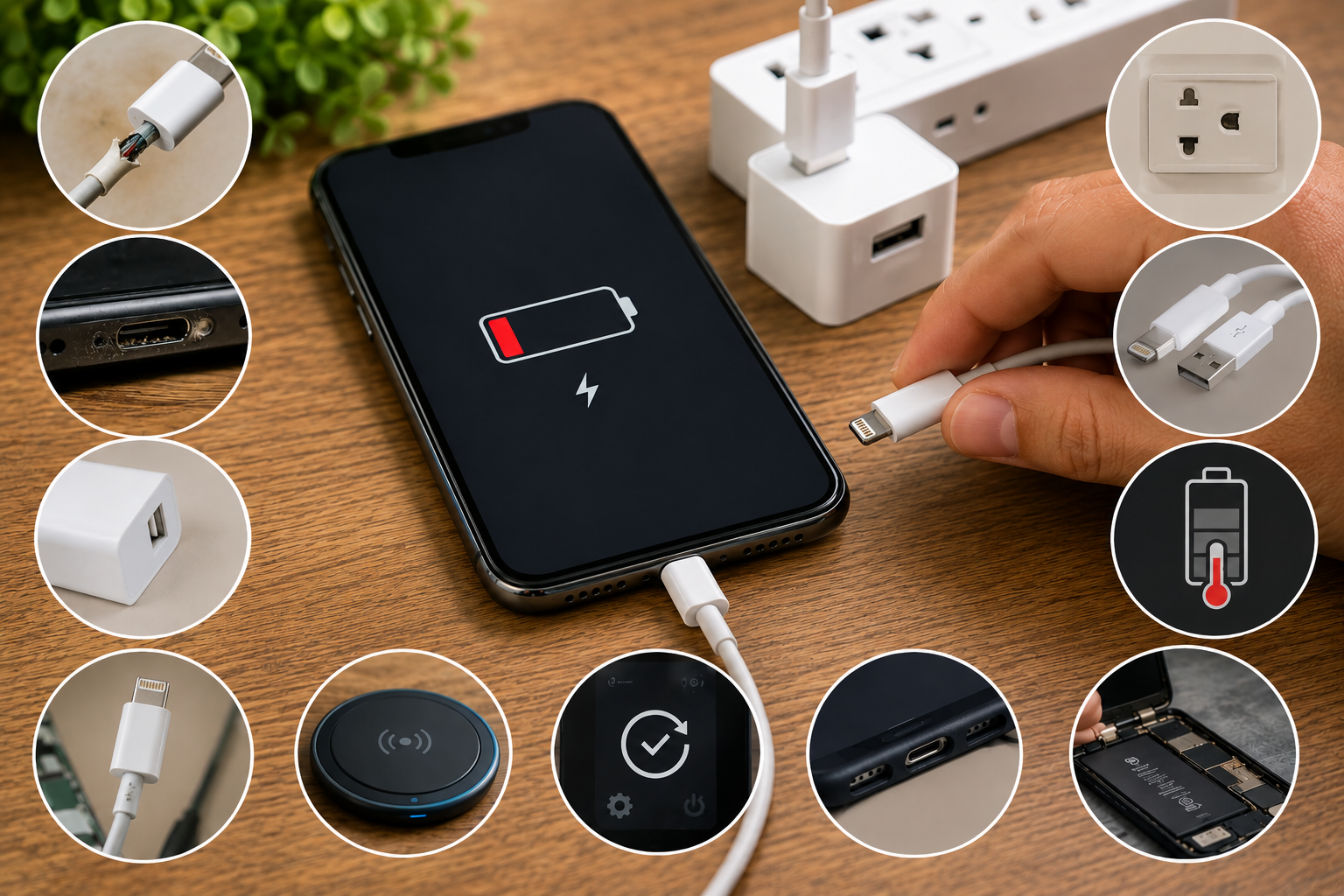
A faulty charger is one of the first things you should check when your laptop isn't turning on.
Look for signs such as:
Connect the charger securely to the laptop and a working wall outlet. If possible, test with a compatible, reliable charger.
If the charging light doesn't appear, the charger, charging port, battery, or internal power circuit could be responsible.
Sometimes the laptop isn't the problem at all. The wall socket or extension board may not be supplying power.
Try another working electrical outlet. If you're using an extension board or surge protector, connect the charger directly to the wall socket for testing.
A temporary electrical or hardware state can sometimes prevent a laptop from starting normally.
Disconnect the charger and remove any connected USB devices, memory cards, external drives, and other accessories.
If your laptop has a removable battery, remove it. Hold the power button for around 15–30 seconds, then reconnect the appropriate power source and try turning it on again.
For laptops with built-in batteries, follow the manufacturer's recommended power-reset procedure.
Look carefully for any LED indicator when the charger is connected.
If the charging light appears but the laptop still won't start, the issue may be related to the battery, power button, display, or internal hardware.
If there are no lights at all, the charger, charging port, power circuit, or motherboard may need inspection.
A faulty USB device, external hard drive, docking station, or other peripheral can occasionally interfere with the startup process.
Disconnect all external devices and try starting the laptop again.
If the laptop turns on afterward, reconnect the devices one at a time to identify which accessory may be causing the problem.
Sometimes a laptop is actually powering on, but the screen remains black.
You may notice:
In this situation, the problem may involve the display, display cable, graphics hardware, or another component rather than the laptop's power system.
Try adjusting the screen brightness and connecting the laptop to a compatible external display if available.
If the laptop clearly powers on but produces no display, professional diagnosis may be required.
Pay attention when you press the power button.
Fans spinning, beeping sounds, repeated restarting, or unusual clicking noises can provide clues about what is happening during startup.
Different laptop manufacturers may use different diagnostic indicators, so check the manufacturer's documentation for the specific meaning of any beep or LED pattern.
An old or damaged battery may prevent a laptop from starting normally.
If the laptop works only when connected to the charger, the battery could be significantly degraded.
Try powering the laptop using the charger, if the manufacturer allows normal operation without a functional battery.
If the laptop still doesn't turn on, the problem may not be limited to the battery.
A professional technician can test the battery and charging system before recommending replacement.
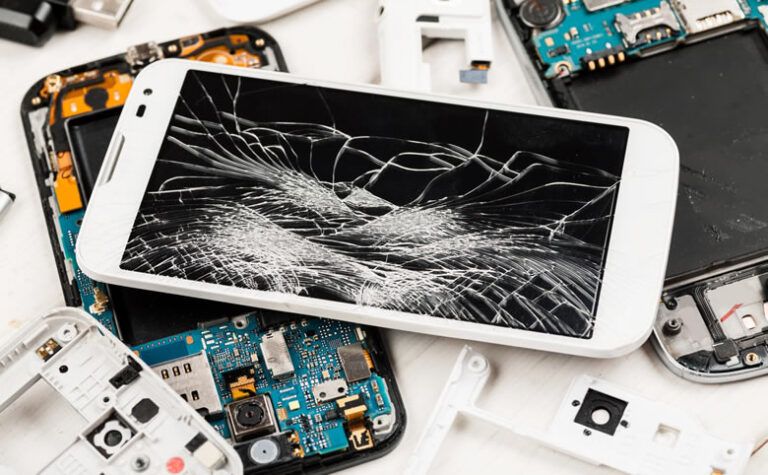
Physical impact, liquid spills, overheating, or moisture can damage internal laptop components.
If the laptop recently suffered a fall or liquid exposure and stopped working, avoid repeatedly attempting to power it on.
Disconnect the power source and seek professional inspection.
Continuing to power a liquid-damaged laptop can potentially make the damage worse.
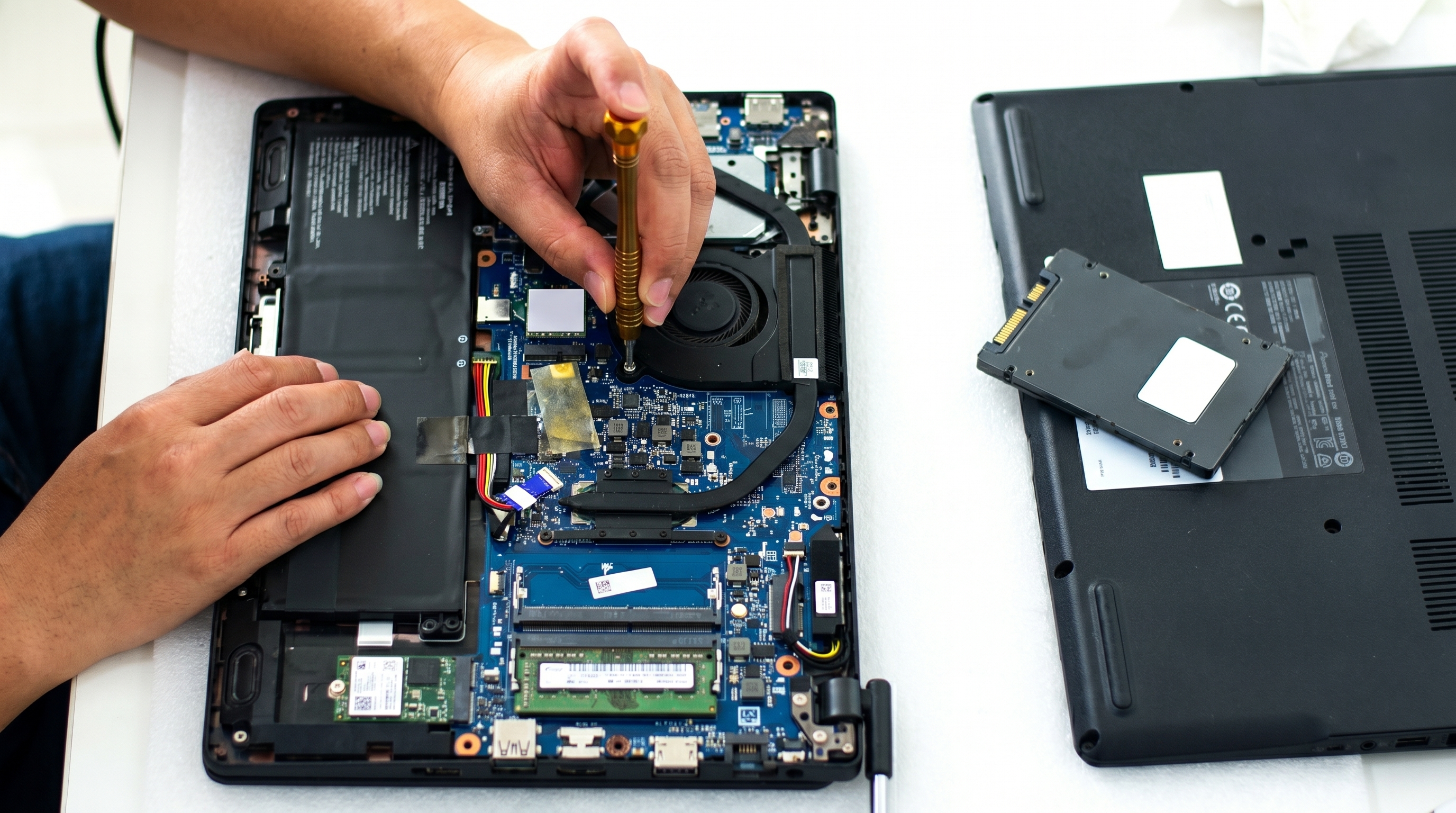
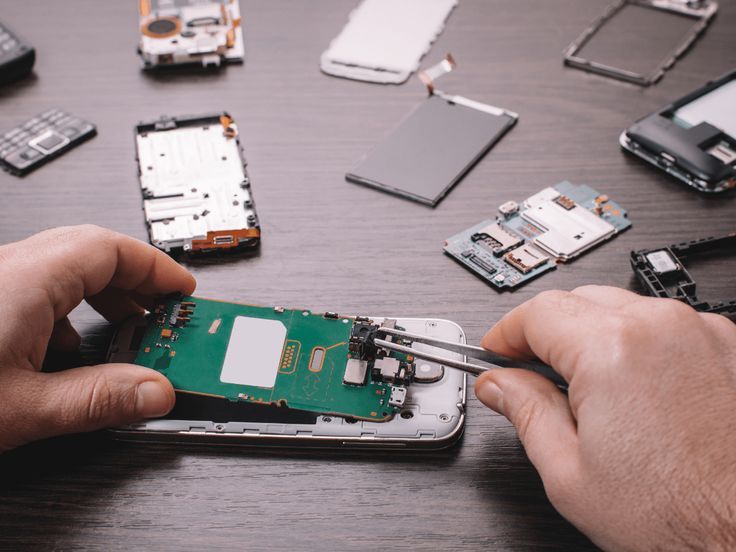
If you've tested the charger, power outlet and basic connections but the laptop remains completely unresponsive, the problem may be inside the device.
Possible causes include:
These problems generally require specialist tools and professional diagnosis.
A laptop that powers on but doesn't load Windows or another operating system is a different problem from a laptop that has no power.
If you see the manufacturer's logo but the system doesn't continue starting, possible causes include:
In this situation, professional troubleshooting may be needed to identify whether the issue is software- or hardware-related.
If your laptop doesn't turn on even after being connected to a charger, check these points:
Avoid repeatedly forcing the power button or using an incompatible charger.
You should consider professional laptop repair if:
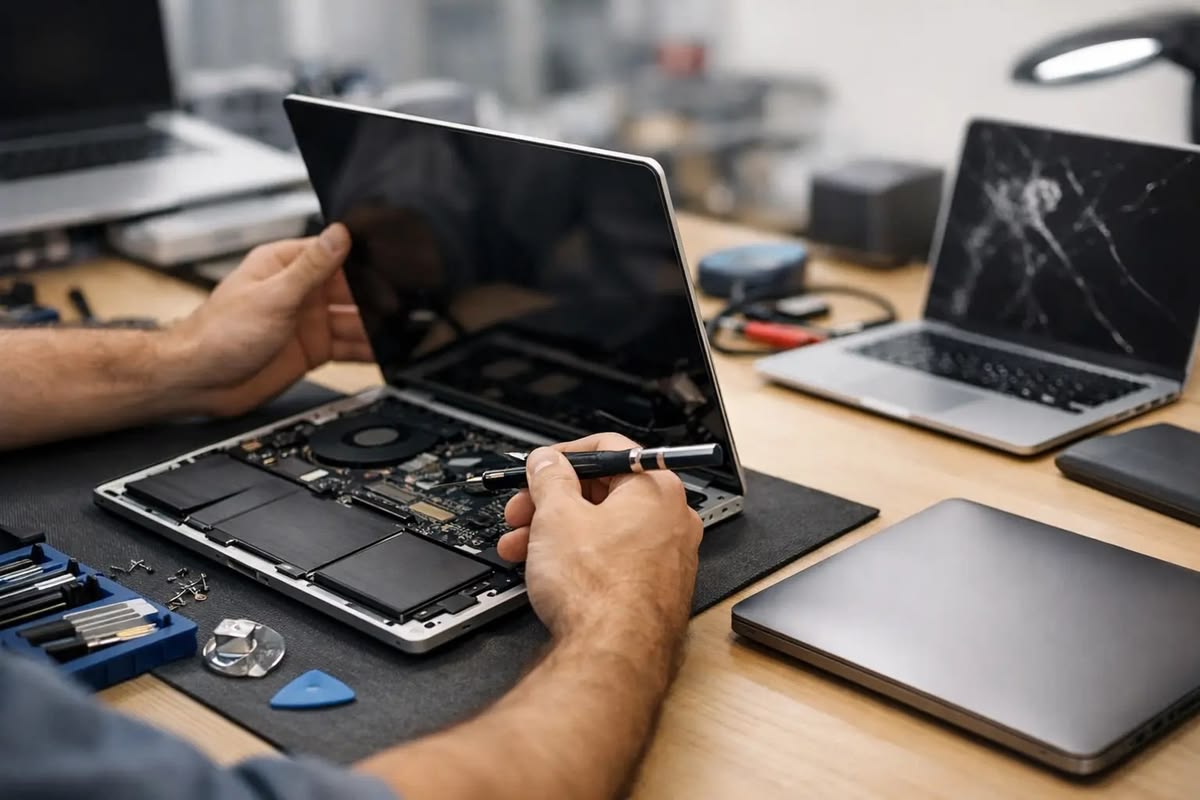
A technician can inspect the charging system, battery, RAM, storage, motherboard and other components to determine the actual cause.
Regular maintenance can reduce the chances of unexpected laptop problems.
Avoid blocking the ventilation openings and use the laptop on a hard, flat surface whenever possible.
Using the correct charger helps protect the laptop's charging system and battery.
Avoid pulling, twisting or sharply bending the charger cable.
Even a small amount of liquid can damage sensitive internal components.
Cleaning dust from the cooling system and keeping software updated can help maintain overall laptop performance.
If your laptop isn't turning on, don't immediately assume that you need a new device.
A faulty charger, battery, charging port or other repairable component may be responsible. Even some motherboard-related problems can be diagnosed and repaired depending on the extent of the damage.
A professional diagnosis can help you understand the actual repair cost before deciding whether to repair or replace the laptop.
If your laptop is not turning on, getting the problem diagnosed correctly is important. Attempting complicated hardware repairs without the right tools or experience can cause additional damage.
B Serve provides professional device repair services and can help diagnose laptop power, charging and hardware-related problems.
Whether the issue is related to the charger, battery, charging port, display or internal hardware, proper diagnosis is the first step toward finding the right solution.
A laptop not turning on can be caused by something as simple as a faulty power outlet or charger, but it can also indicate battery, display, motherboard or other hardware problems.
Start with the basic checks: test the power source, inspect the charger, disconnect external devices and perform a safe power reset. If your laptop remains completely unresponsive or shows signs of hardware damage, professional diagnosis is the safest option.
Finding the actual cause before replacing components can save both time and money.
The battery, power button, display, RAM or another internal component could be causing the problem. If the charging indicator works but the laptop doesn't start, further diagnosis may be necessary.
A faulty charger, charging port, battery, power circuit or motherboard could be responsible. Try a different compatible power outlet and check whether any charging indicator appears.
The laptop may actually be running, with the problem affecting the display, display cable, graphics hardware or startup process.
In most cases, a severely degraded laptop battery is replaced rather than repaired. A technician can test the battery and determine whether replacement is necessary.
No. Repeatedly pressing or forcing the power button is unlikely to solve a hardware fault. Start with basic power and charger checks and seek professional diagnosis if the laptop remains unresponsive.
The cost depends on the actual problem and the component involved. Charger, battery and charging-port issues may have different costs from motherboard or display repairs. A diagnosis is usually needed before an accurate estimate can be given.