 Post : bserve | 2026-10-08
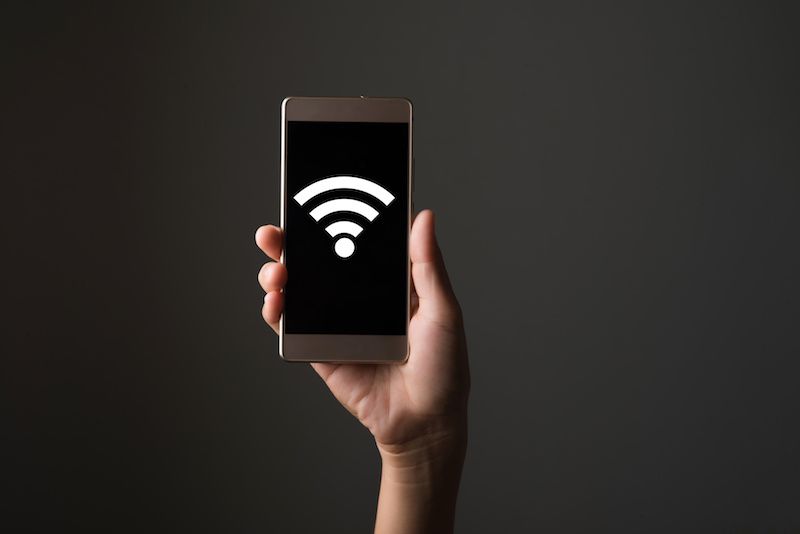
Wi-Fi has become an essential part of everyday smartphone use. From browsing the internet and watching videos to online meetings, social media, online payments and work, we depend on a stable internet connection for many daily activities. However, a common problem users experience is mobile phone Wi-Fi not working properly.
Sometimes a phone may fail to connect to a Wi-Fi network, while in other cases it may connect but show no internet access. Frequent disconnections, slow Wi-Fi speeds and difficulty detecting available networks can also indicate a problem.
The good news is that many Wi-Fi issues can be resolved with simple troubleshooting. However, if the problem continues after basic checks, there could be a software or hardware issue that requires professional diagnosis.
In this guide, we will explain the common reasons why your phone Wi-Fi may not be working and what you can do about it.
Several factors can cause Wi-Fi connectivity problems on smartphones. The issue may come from the phone, router, network settings or even the Wi-Fi hardware.
Here are some common causes.
The simplest reason may be that Wi-Fi has accidentally been disabled.
Check your phone's Wi-Fi settings and make sure Wi-Fi is switched on. You can also turn it off and on again to refresh the connection.
If you recently changed your router password, your smartphone may still have the old password saved.
In this situation, the phone may repeatedly fail to connect.
Try selecting the Wi-Fi network, choosing "Forget Network" and reconnecting with the correct password.
A temporary software error can sometimes prevent a smartphone from connecting properly to Wi-Fi.
Restarting the phone is one of the easiest troubleshooting steps. A restart can refresh network processes and resolve temporary system problems.
If the problem continues, check whether a software update is available for your device.
Sometimes the phone is not the problem at all.
If multiple devices connected to the same Wi-Fi network cannot access the internet, the issue may be related to the router or internet service provider.
Restart the router and check whether other devices can connect successfully.
Distance from the router can affect Wi-Fi performance.
Walls, furniture and other obstacles may weaken the signal. If your phone works normally near the router but loses connection in another room, signal strength may be the main issue.
Try moving closer to the router and checking the connection again.
A Wi-Fi issue can appear in different ways.
Some common symptoms include:
Identifying the exact symptom can help determine whether the problem is related to software, network settings or hardware.
Before taking your phone for repair, you can try several basic troubleshooting methods.
Restarting the device is one of the simplest ways to resolve temporary software problems.
Turn the phone off completely, wait a few seconds and turn it back on. Then try connecting to Wi-Fi again.
If the problem affects multiple devices, restart your Wi-Fi router.
Disconnect the router from power, wait briefly and reconnect it. Allow the router to restart fully before testing the connection.
If your phone connects unsuccessfully, remove the saved Wi-Fi network and reconnect.
Go to your Wi-Fi settings, select the network and choose the option to forget it. Then enter the Wi-Fi password again.
If the problem continues, resetting network settings may help.
This can remove saved Wi-Fi networks, Bluetooth connections and certain network configurations. Make sure you know your important Wi-Fi passwords before performing a network reset.
Outdated software can sometimes cause connectivity problems.
Check your device settings for available system updates and install official updates when appropriate.
This is an important clue.
If other smartphones and laptops connect to the same Wi-Fi network successfully but your phone does not, the problem may be specific to your device.
It could be caused by:
If basic troubleshooting does not solve the issue, professional diagnosis may be necessary.
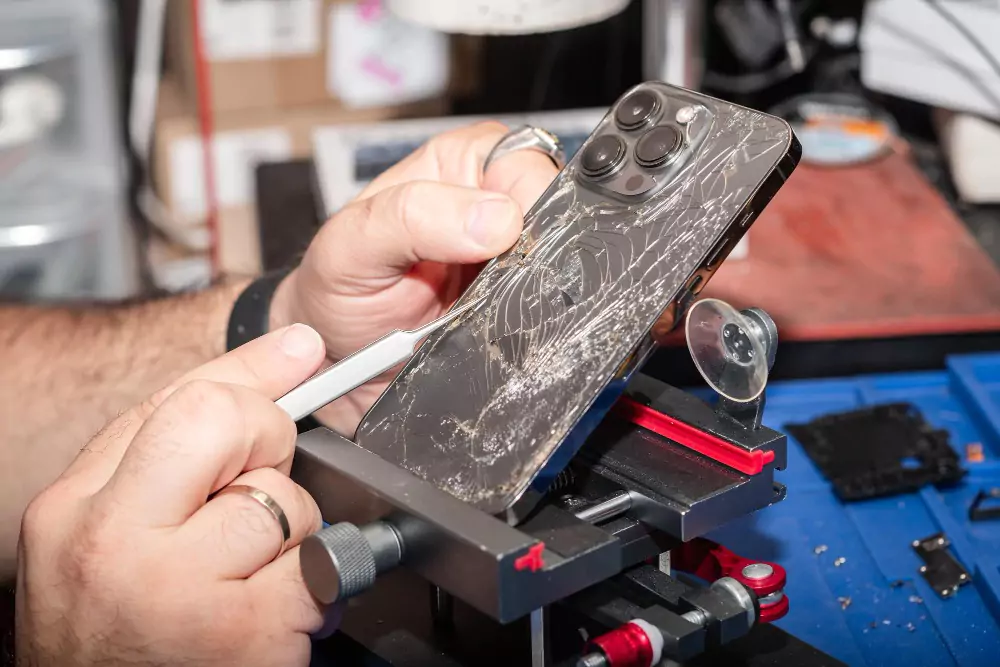
Yes. Physical damage can sometimes affect wireless connectivity.
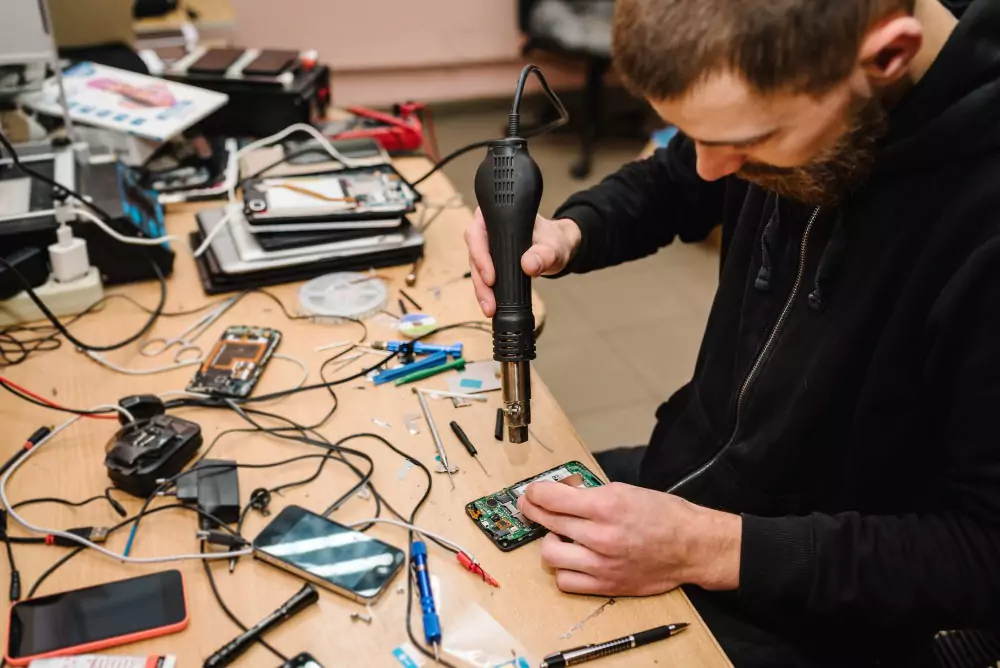
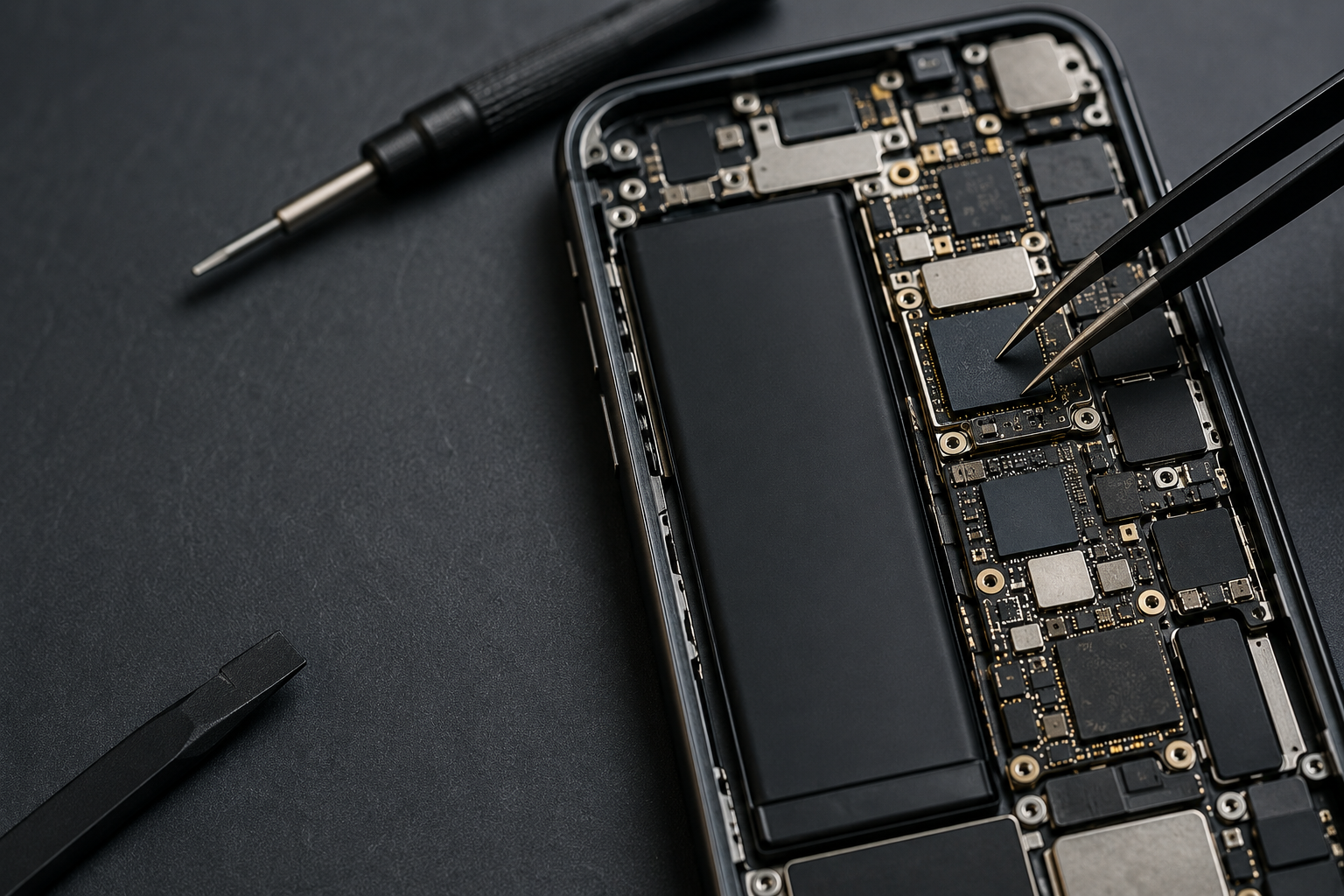
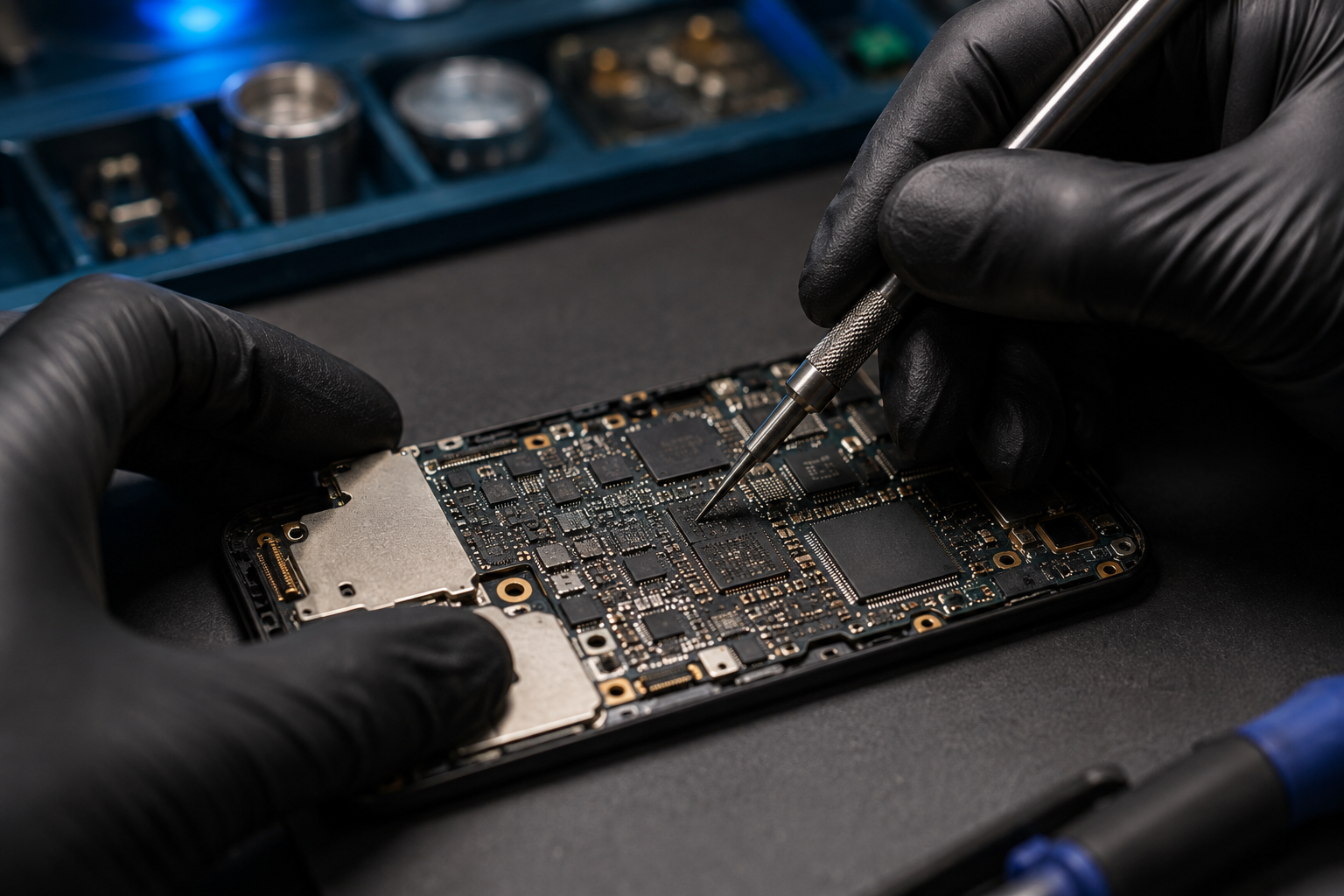
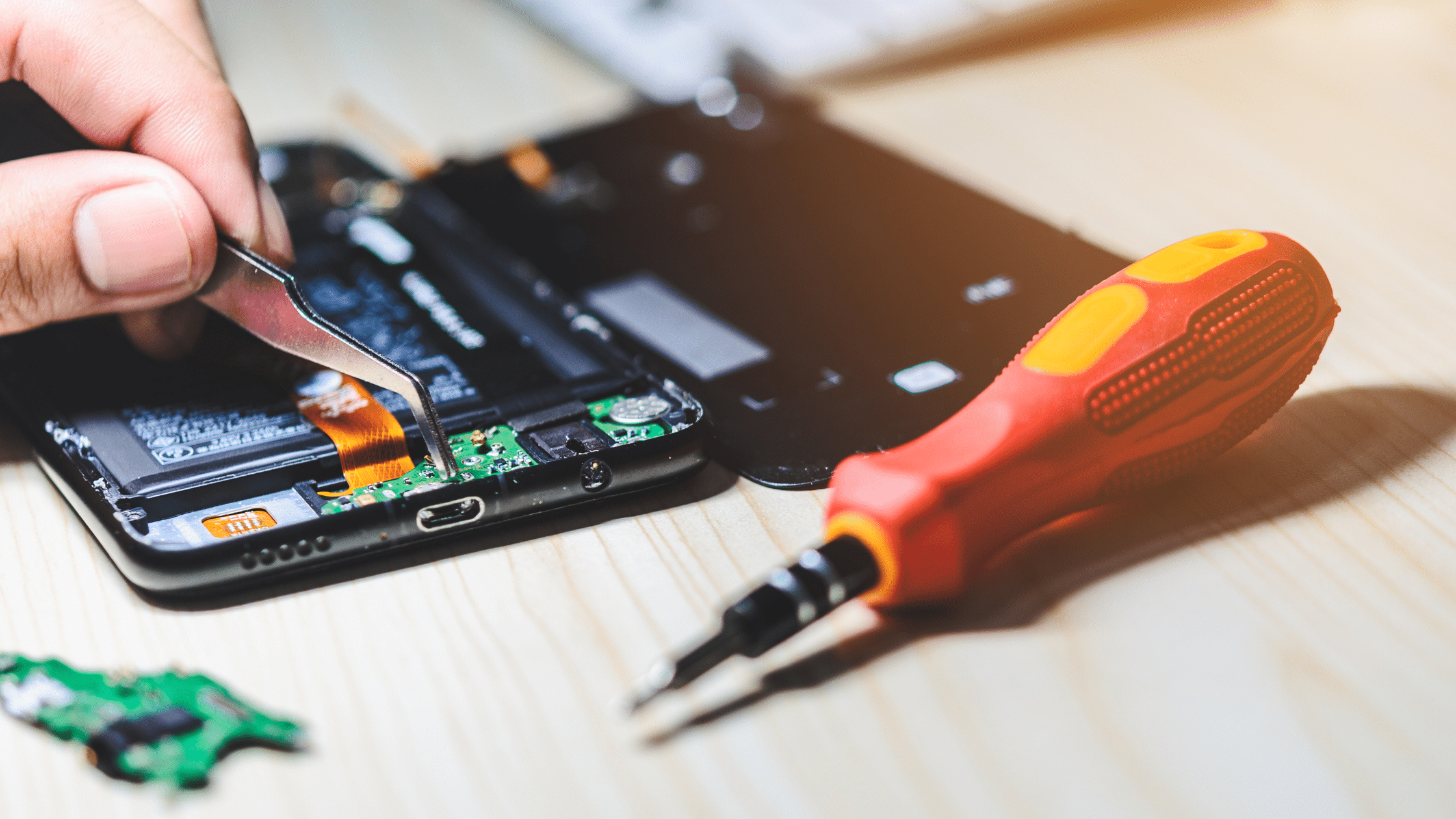
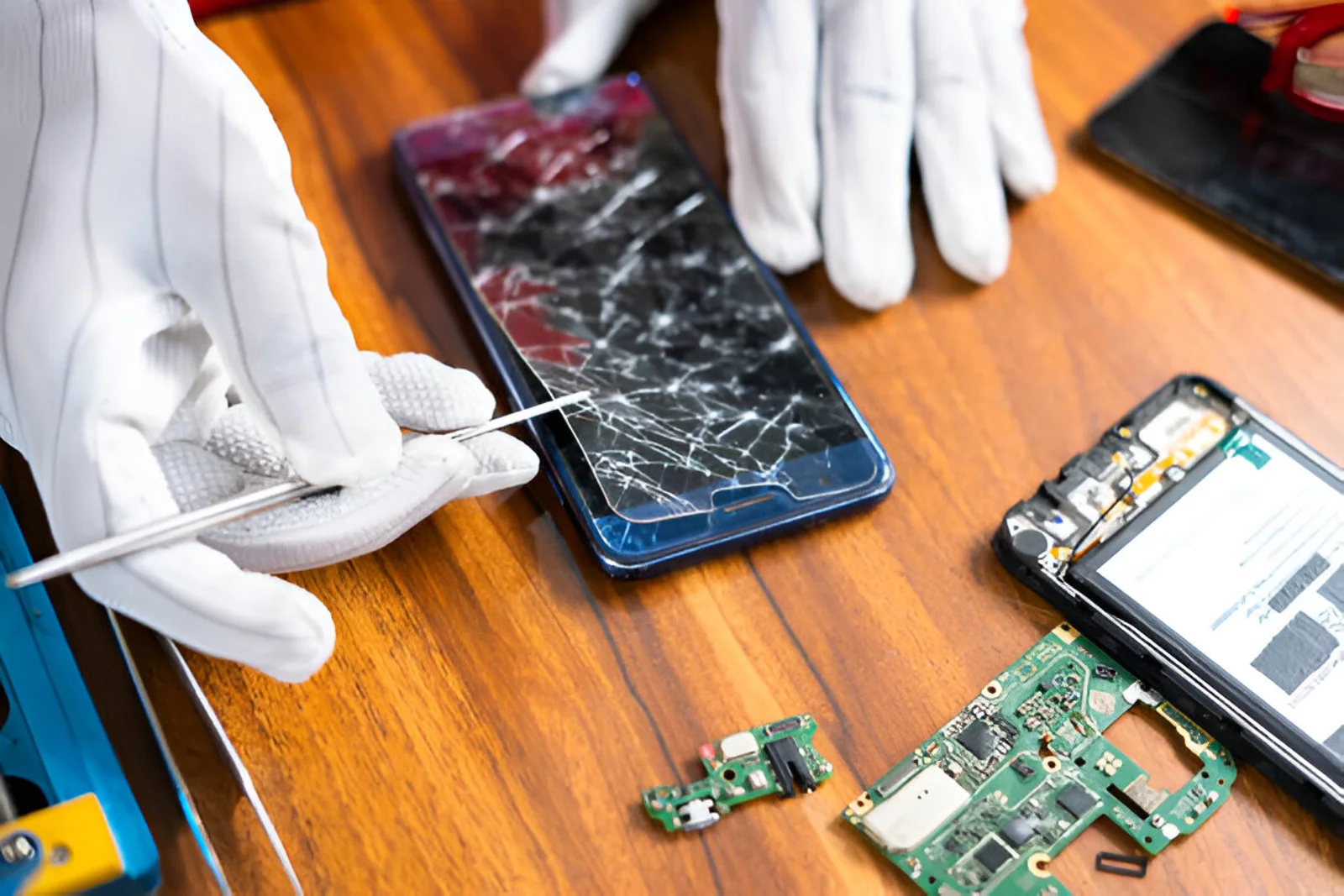
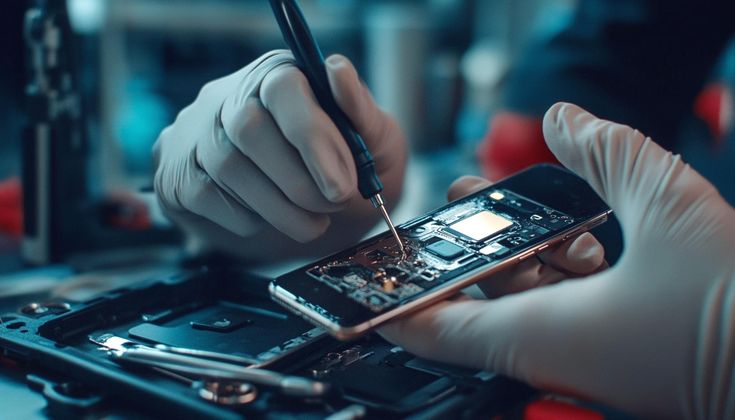
A smartphone contains delicate internal components responsible for Wi-Fi, Bluetooth and other communication functions. A serious drop, liquid exposure or motherboard damage can affect these components.
In such cases, repeatedly changing settings may not solve the problem.
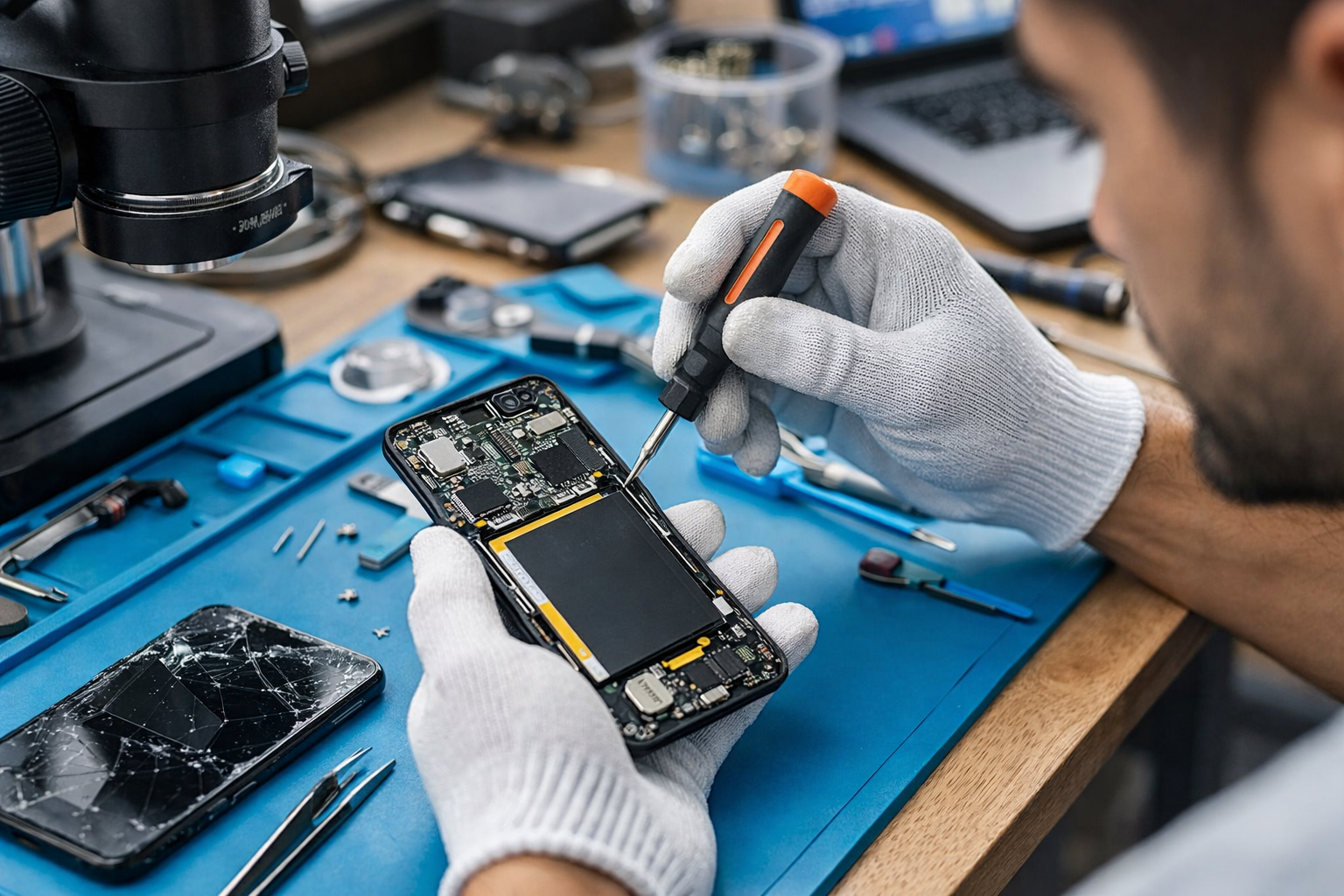
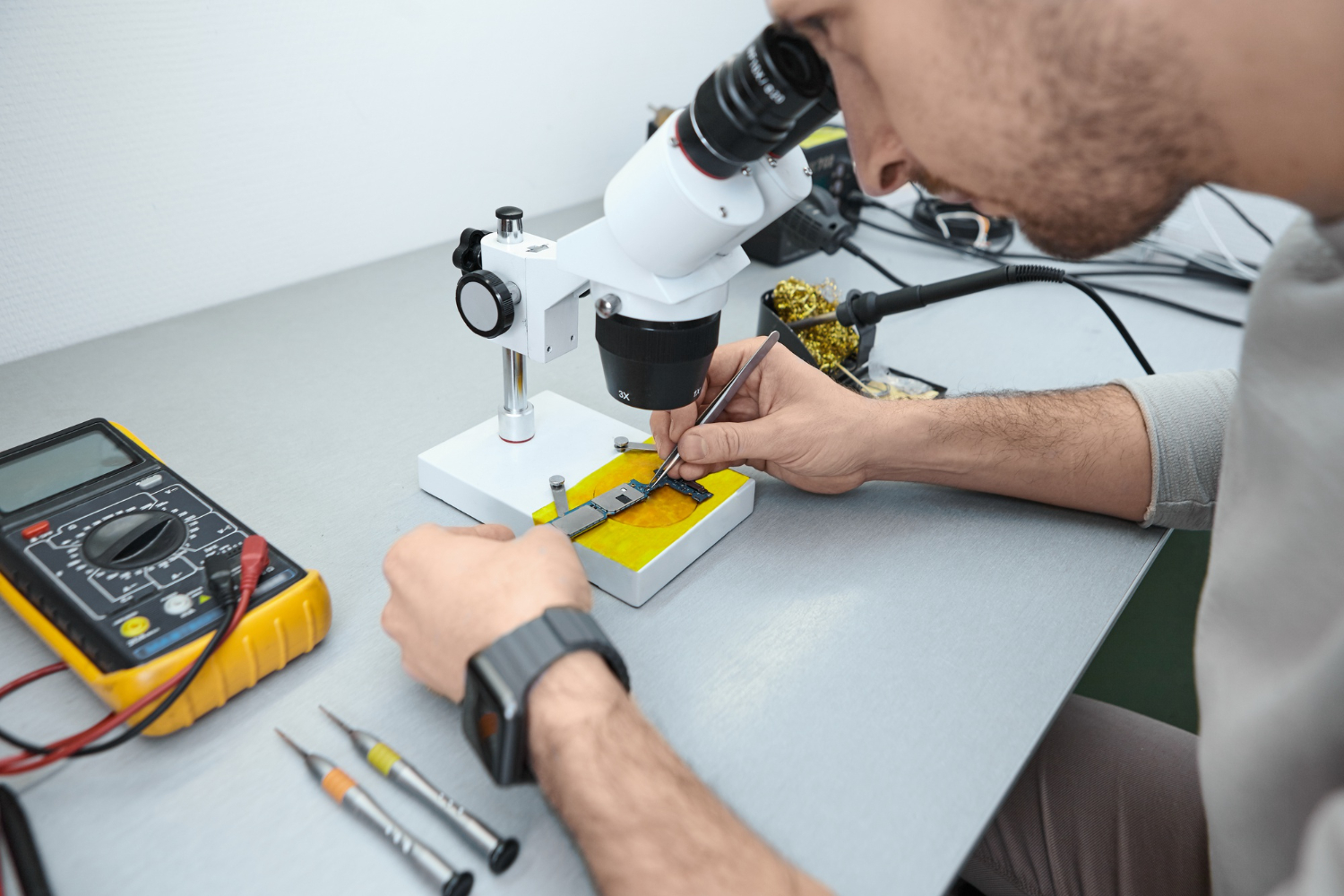
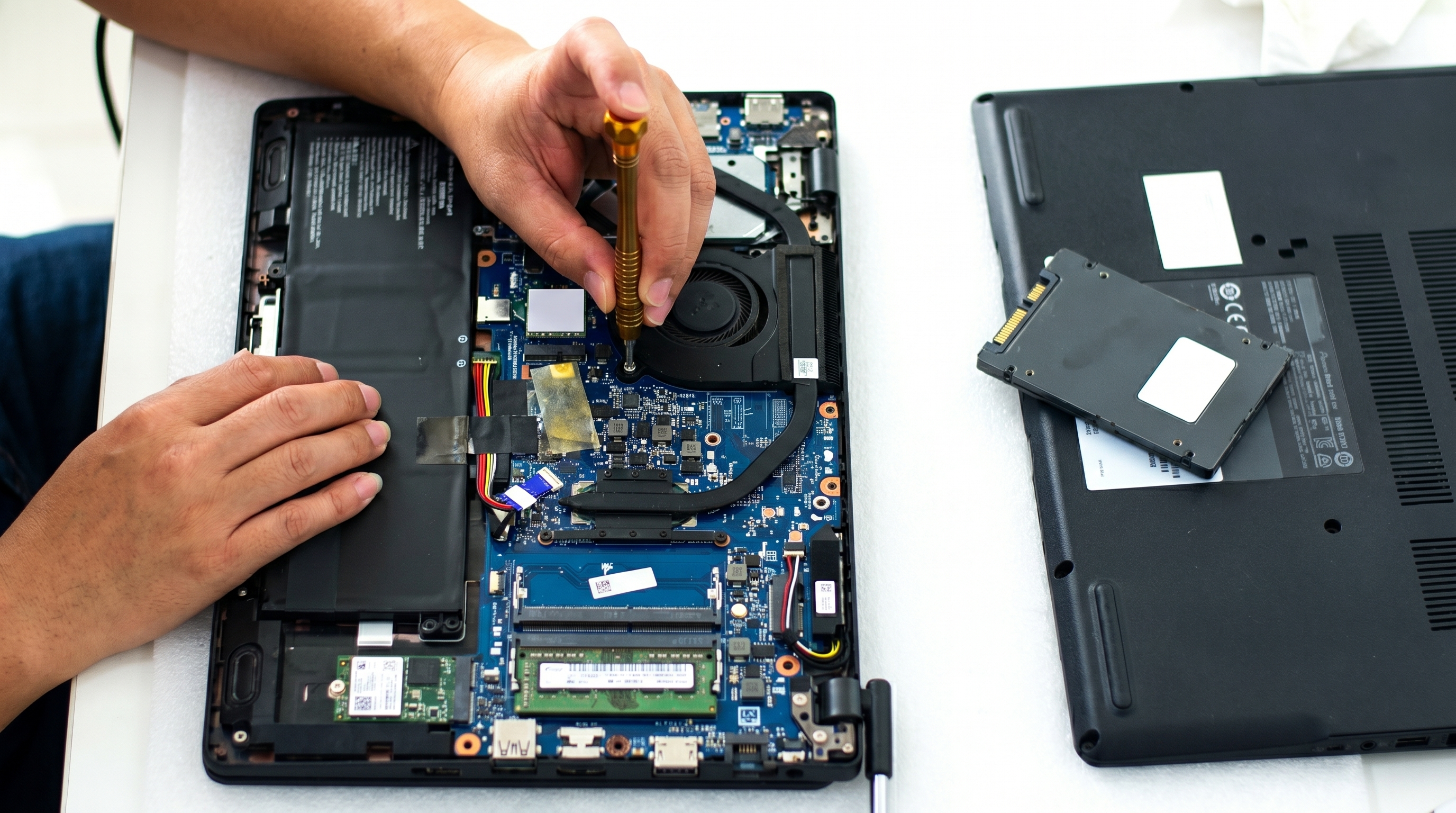
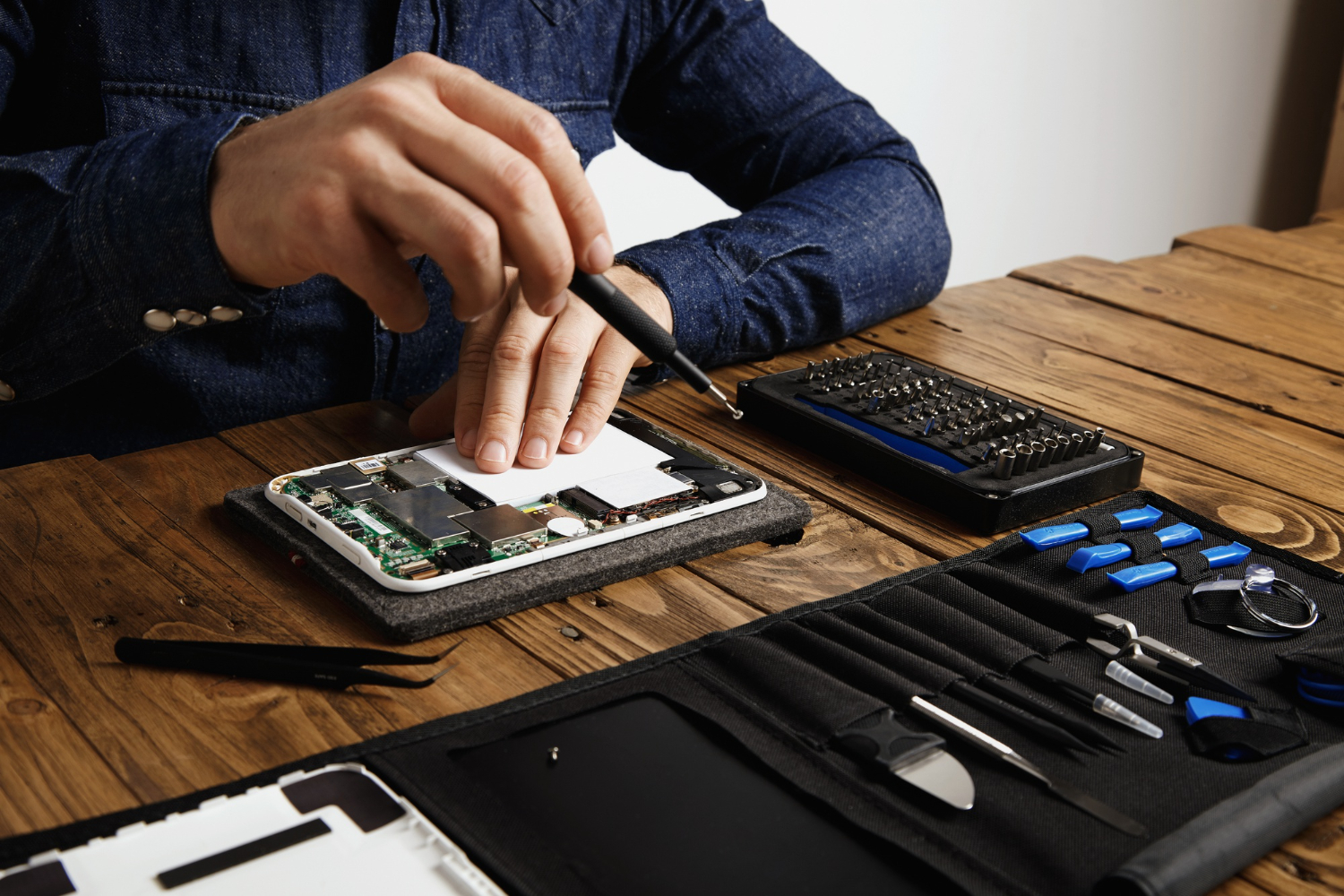
A professional technician can inspect the device and determine whether the problem is software-related or caused by internal hardware damage.
You should consider professional repair when:
Professional diagnosis can help identify the actual cause instead of replacing components unnecessarily.
Wi-Fi problems are not always caused by a faulty Wi-Fi component. A software issue, damaged connector, motherboard fault or network configuration problem can produce similar symptoms.
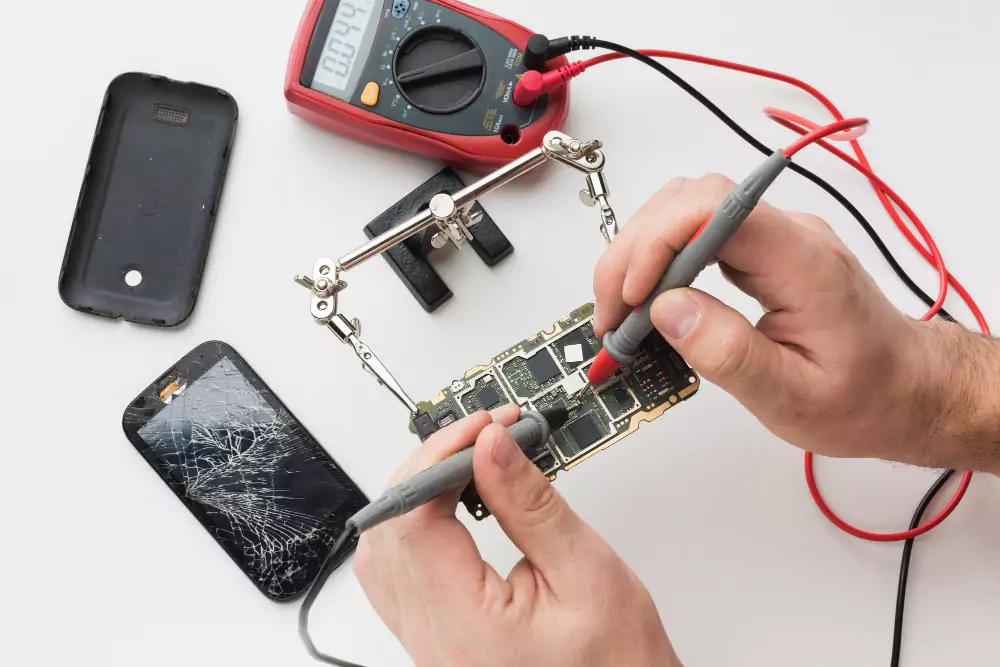
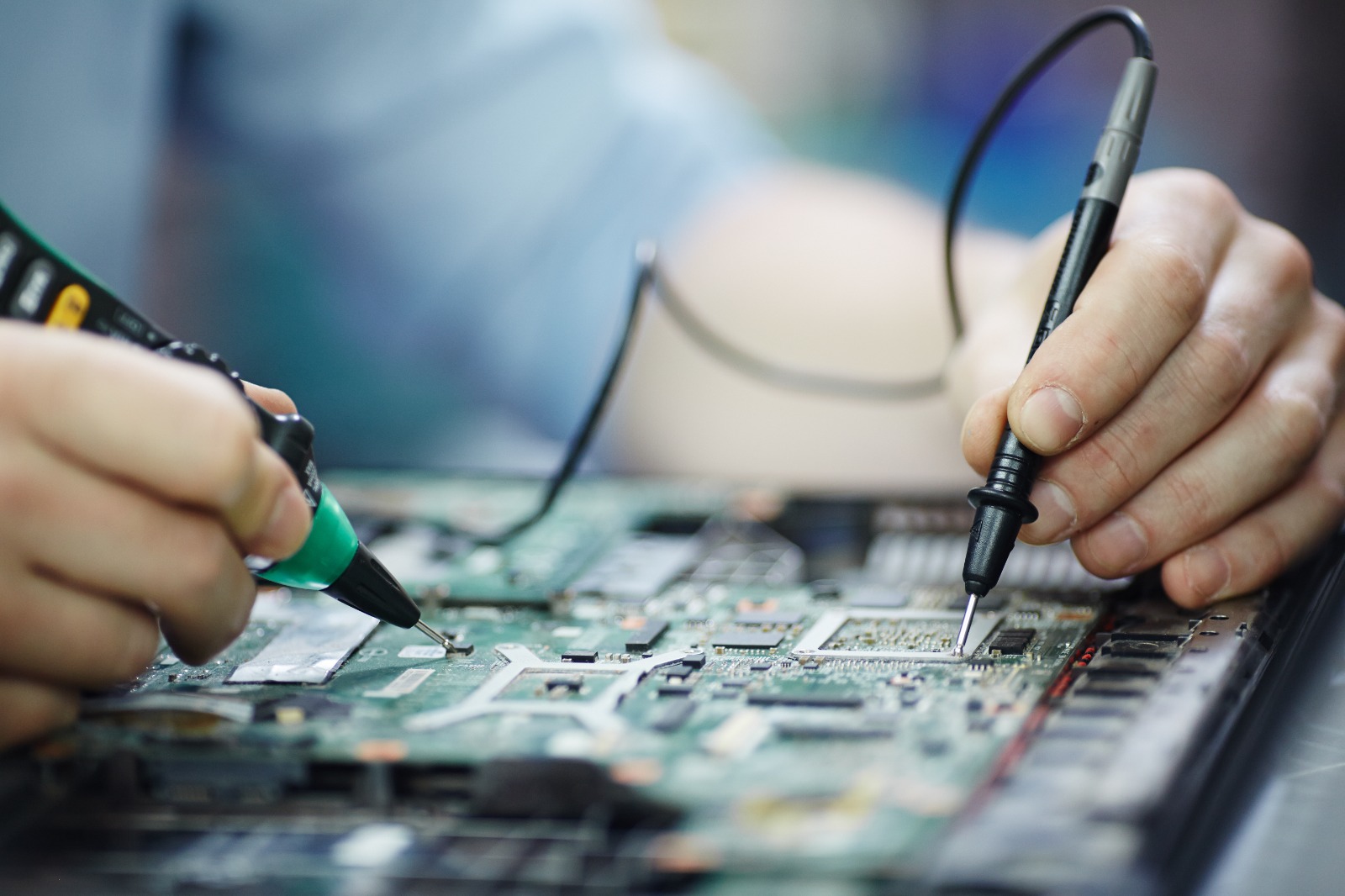
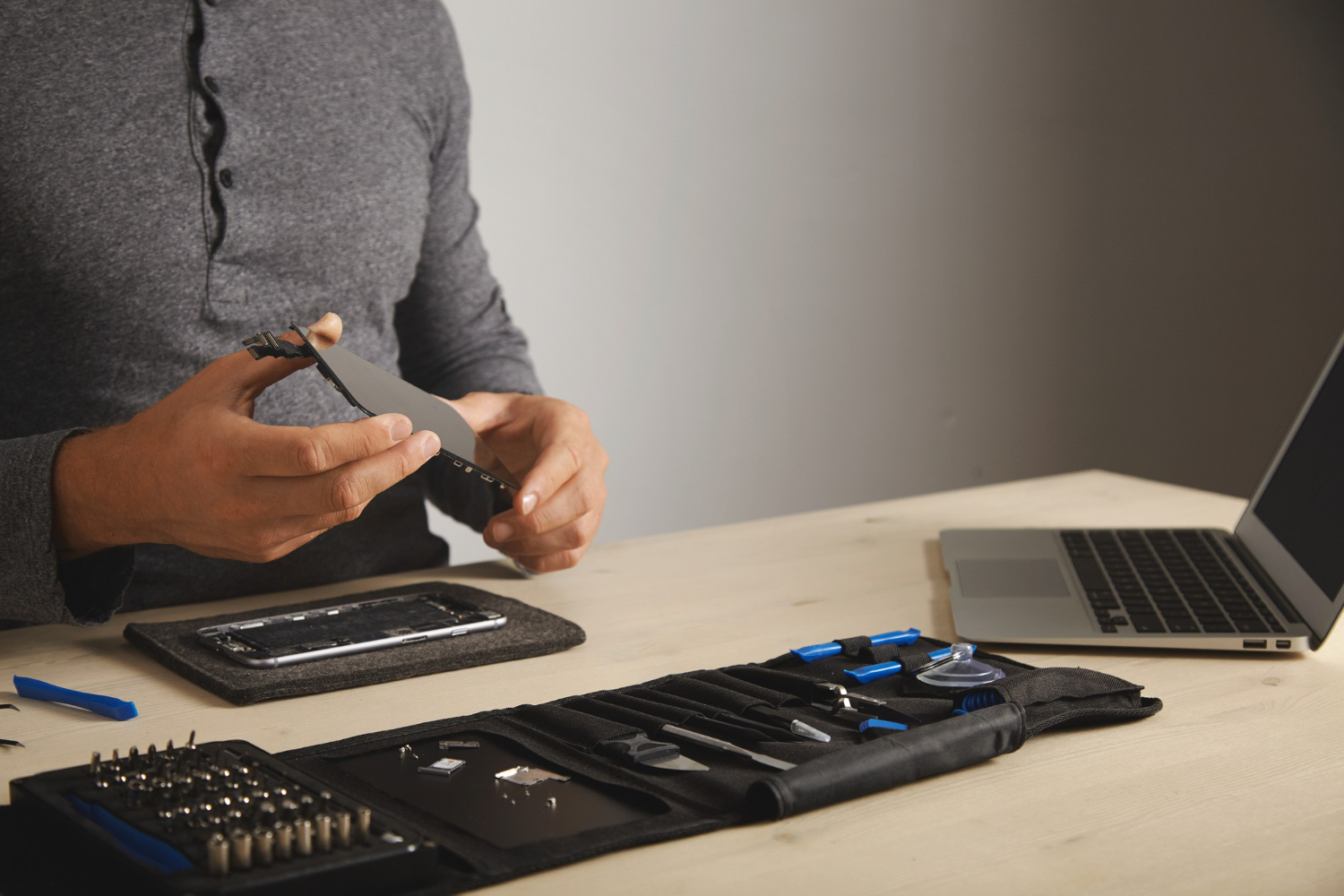
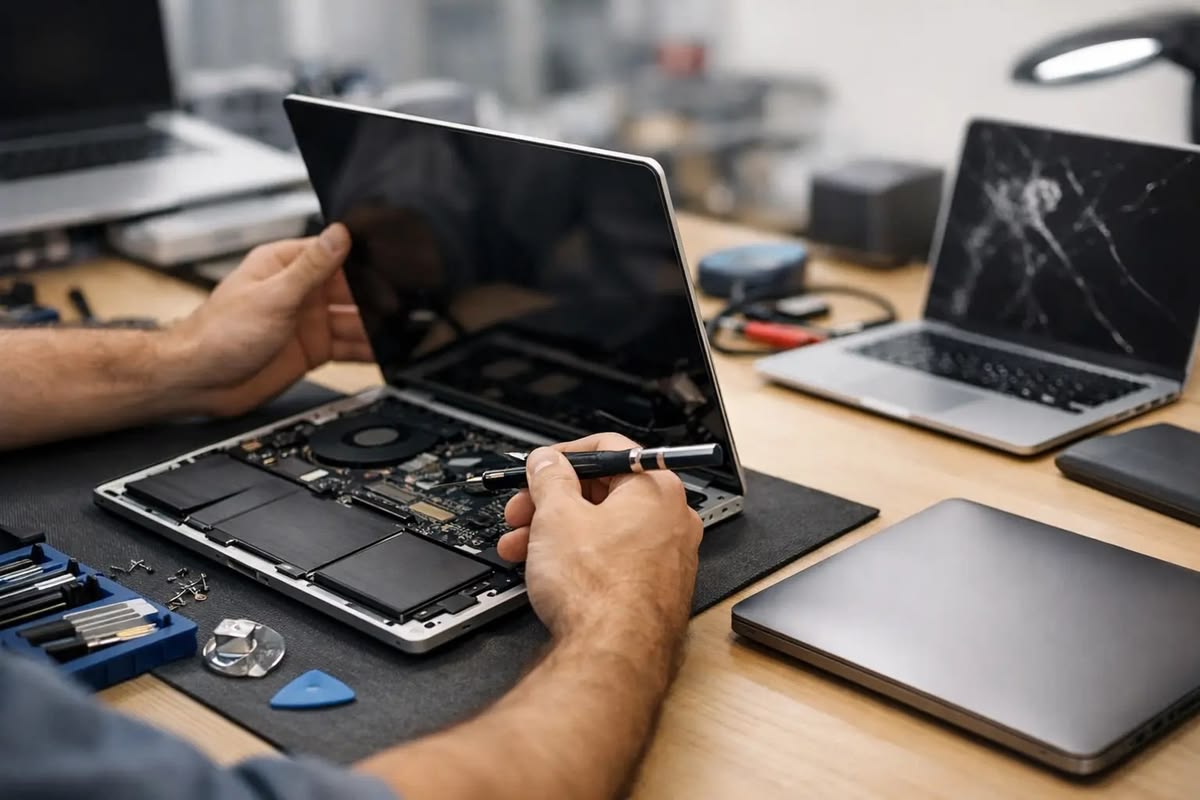
A professional repair technician can inspect the device using appropriate diagnostic tools and determine the underlying problem.
B Serve provides smartphone, tablet, laptop, iPhone, MacBook, smartwatch and electronic gadget repair services. The company serves customers in areas including Malappuram, Kottakkal, Tirur and Perinthalmanna and offers both in-store and onsite repair services.
B Serve also highlights the use of advanced diagnostic tools, quality spare parts, experienced technicians and transparent pricing as part of its repair service.
Although not every hardware problem can be prevented, good device care can reduce the risk of connectivity issues.
Install official software updates to maintain system stability and compatibility.
Use a suitable protective case and screen protector to reduce the risk of damage from accidental drops.
Even water-resistant devices can suffer damage under certain conditions. Avoid unnecessary exposure to water and moisture.
Installing applications from unreliable sources can create software and security problems that may affect device performance.
If you frequently experience connectivity issues across multiple devices, check your router and internet connection regularly.
A mobile phone Wi-Fi not working problem can be caused by something as simple as an incorrect password or temporary software glitch, but persistent problems may indicate a deeper hardware or software issue.
Start with basic troubleshooting such as restarting your phone, restarting the router, forgetting and reconnecting to the Wi-Fi network, resetting network settings and checking for software updates.
If your phone still cannot connect to Wi-Fi, especially after physical or water damage, professional diagnosis is the safer option. An experienced technician can identify the underlying problem and recommend the appropriate repair instead of relying on trial and error.Wi-Fi has become an essential part of everyday smartphone use. From browsing the internet and watching videos to online meetings, social media, online payments and work, we depend on a stable internet connection for many daily activities. However, a common problem users experience is mobile phone Wi-Fi not working properly.
Sometimes a phone may fail to connect to a Wi-Fi network, while in other cases it may connect but show no internet access. Frequent disconnections, slow Wi-Fi speeds and difficulty detecting available networks can also indicate a problem.
The good news is that many Wi-Fi issues can be resolved with simple troubleshooting. However, if the problem continues after basic checks, there could be a software or hardware issue that requires professional diagnosis.
In this guide, we will explain the common reasons why your phone Wi-Fi may not be working and what you can do about it.
Several factors can cause Wi-Fi connectivity problems on smartphones. The issue may come from the phone, router, network settings or even the Wi-Fi hardware.
Here are some common causes.
The simplest reason may be that Wi-Fi has accidentally been disabled.
Check your phone's Wi-Fi settings and make sure Wi-Fi is switched on. You can also turn it off and on again to refresh the connection.
If you recently changed your router password, your smartphone may still have the old password saved.
In this situation, the phone may repeatedly fail to connect.
Try selecting the Wi-Fi network, choosing "Forget Network" and reconnecting with the correct password.
A temporary software error can sometimes prevent a smartphone from connecting properly to Wi-Fi.
Restarting the phone is one of the easiest troubleshooting steps. A restart can refresh network processes and resolve temporary system problems.
If the problem continues, check whether a software update is available for your device.
Sometimes the phone is not the problem at all.
If multiple devices connected to the same Wi-Fi network cannot access the internet, the issue may be related to the router or internet service provider.
Restart the router and check whether other devices can connect successfully.
Distance from the router can affect Wi-Fi performance.
Walls, furniture and other obstacles may weaken the signal. If your phone works normally near the router but loses connection in another room, signal strength may be the main issue.
Try moving closer to the router and checking the connection again.
A Wi-Fi issue can appear in different ways.
Some common symptoms include:
Identifying the exact symptom can help determine whether the problem is related to software, network settings or hardware.
Before taking your phone for repair, you can try several basic troubleshooting methods.
Restarting the device is one of the simplest ways to resolve temporary software problems.
Turn the phone off completely, wait a few seconds and turn it back on. Then try connecting to Wi-Fi again.
If the problem affects multiple devices, restart your Wi-Fi router.
Disconnect the router from power, wait briefly and reconnect it. Allow the router to restart fully before testing the connection.
If your phone connects unsuccessfully, remove the saved Wi-Fi network and reconnect.
Go to your Wi-Fi settings, select the network and choose the option to forget it. Then enter the Wi-Fi password again.
If the problem continues, resetting network settings may help.
This can remove saved Wi-Fi networks, Bluetooth connections and certain network configurations. Make sure you know your important Wi-Fi passwords before performing a network reset.
Outdated software can sometimes cause connectivity problems.
Check your device settings for available system updates and install official updates when appropriate.
This is an important clue.
If other smartphones and laptops connect to the same Wi-Fi network successfully but your phone does not, the problem may be specific to your device.
It could be caused by:
If basic troubleshooting does not solve the issue, professional diagnosis may be necessary.
Yes. Physical damage can sometimes affect wireless connectivity.
A smartphone contains delicate internal components responsible for Wi-Fi, Bluetooth and other communication functions. A serious drop, liquid exposure or motherboard damage can affect these components.
In such cases, repeatedly changing settings may not solve the problem.
A professional technician can inspect the device and determine whether the problem is software-related or caused by internal hardware damage.
You should consider professional repair when:
Professional diagnosis can help identify the actual cause instead of replacing components unnecessarily.
Wi-Fi problems are not always caused by a faulty Wi-Fi component. A software issue, damaged connector, motherboard fault or network configuration problem can produce similar symptoms.
A professional repair technician can inspect the device using appropriate diagnostic tools and determine the underlying problem.
B Serve provides smartphone, tablet, laptop, iPhone, MacBook, smartwatch and electronic gadget repair services. The company serves customers in areas including Malappuram, Kottakkal, Tirur and Perinthalmanna and offers both in-store and onsite repair services.
B Serve also highlights the use of advanced diagnostic tools, quality spare parts, experienced technicians and transparent pricing as part of its repair service.
Although not every hardware problem can be prevented, good device care can reduce the risk of connectivity issues.
Install official software updates to maintain system stability and compatibility.
Use a suitable protective case and screen protector to reduce the risk of damage from accidental drops.
Even water-resistant devices can suffer damage under certain conditions. Avoid unnecessary exposure to water and moisture.
Installing applications from unreliable sources can create software and security problems that may affect device performance.
If you frequently experience connectivity issues across multiple devices, check your router and internet connection regularly.
A mobile phone Wi-Fi not working problem can be caused by something as simple as an incorrect password or temporary software glitch, but persistent problems may indicate a deeper hardware or software issue.
Start with basic troubleshooting such as restarting your phone, restarting the router, forgetting and reconnecting to the Wi-Fi network, resetting network settings and checking for software updates.
If your phone still cannot connect to Wi-Fi, especially after physical or water damage, professional diagnosis is the safer option. An experienced technician can identify the underlying problem and recommend the appropriate repair instead of relying on trial and error.